The Pre-Deployment Audit Your Vendor Never Mentioned

Microsoft’s Copilot demo is impressive. Clean tenant, perfect permissions, handpicked content. The productivity gains are real.
What the demo doesn’t show you is what happens on Day 14 when someone in Finance asks Copilot a routine question and a salary spreadsheet from 2021 surfaces in the response. One with names, base pay, bonuses, and equity. Accessible to 73 people via inherited permissions nobody audited.
That’s not a Copilot failure. Copilot worked exactly as designed.
It’s a governance failure that predates Copilot by years — and Copilot just made it impossible to ignore.
Most organizations skip the pre-deployment audit entirely. Leadership wants Copilot live fast. IT knows permissions are a mess but nobody gave them six months to fix it. The vendor demo used a clean environment. “We’ll clean up as we go” becomes “we’ll clean up after the incident.”
This issue gives you the audit that should happen before Copilot touches your tenant. Four areas, the specific questions to answer in each, and — critically — who should be answering them. Because most of these aren’t IT questions. They’re business decisions IT keeps getting asked to make alone.
The Four Areas
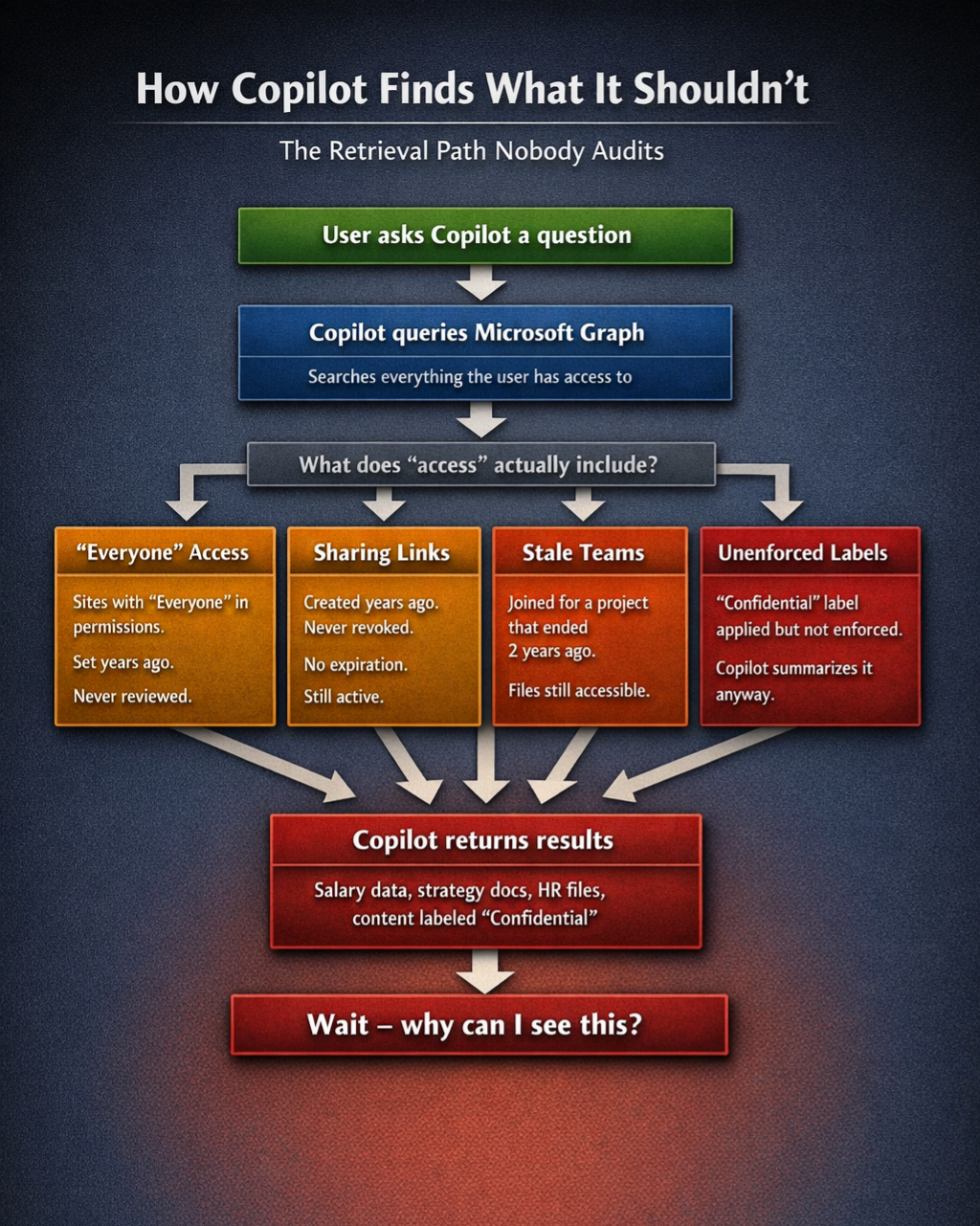
“Everyone” access and overshared sites
This is where most audits start and unfortunately where many stop.
In SharePoint Admin Center, go to Active Sites and filter by External Sharing. That tells you part of the story. For internal oversharing, you need the Sharing report under Reports > Usage, combined with a review of site permissions for your highest-sensitivity sites.
The question to answer: which sites have “Everyone” or “Everyone except external users” in their permissions, and who owns the decision to change that?
The PowerShell approach is faster at scale:
Get-SPOSite -Limit All | ForEach-Object {
  Get-SPOSiteGroup -Site $_.Url | Where-Object {
    $_.Users -contains "Everyone" -or
    $_.Users -contains "Everyone except external users"
  }
}
What you’ll find will be higher than you expect. The question isn’t just which sites are exposed — it’s who is the named data owner for each one, and have they accepted the risk in writing?
Sharing links with no expiration
Every “Copy link” click in SharePoint or OneDrive creates a door. Most of those doors have never been closed.
In SharePoint Admin Center, go to Reports > SharePoint > Sharing links. Filter by link type — “Anyone with the link” is your immediate priority. “People in your organization with the link” is your longer-term problem.
The question to answer: how many active sharing links exist across your tenant, when were they created, and do you have any process for reviewing or expiring them?
Microsoft is rolling out internal link expiration now. That applies to new links going forward. Every link created before this month remains active until someone manually addresses it.
This is not a one-time fix. It needs a policy: who sets default link expiration, what are the approved link types, and what is the review cycle. That policy should be documented and signed off before Copilot goes live.
Teams membership lifecycle
Every Teams channel has a SharePoint site behind it. Every member of that channel has access to every file in that site — including files uploaded after they stopped participating.
The average employee is a member of 15-30 Teams channels. Most organizations have no process for removing people when projects end.
In the Teams Admin Center, go to Teams > Manage Teams and review membership for your most active teams. For a tenant-wide picture you need PowerShell:
Get-Team | ForEach-Object {
  $team = $_
  Get-TeamUser -GroupId $team.GroupId | Select-Object
  @{n='Team';e={$team.DisplayName}},
  User, Role
}
The question to answer: do you have a Teams membership lifecycle policy? Who is responsible for removing members when a project ends or someone changes roles? Is that process documented anywhere?
If the answer is no, Copilot will surface content from channels your users forgot they were in.
Sensitivity labels — applied versus enforced
This one is where governance documentation and operational reality diverge most dramatically.
Many organizations have sensitivity labels configured in Microsoft Purview. Fewer have them applied consistently. Fewer still have them actually enforced in a way that restricts Copilot’s access.
In the Microsoft Purview compliance portal, go to Information Protection > Labels, then review your label policies and the scope of automatic labeling. The gap between “we have labels” and “labels are enforced” is where the February 2026 DLP bypass bug lived for two months — Copilot was summarizing content that sensitivity labels were supposed to protect.
The question to answer: which sensitivity labels in your environment actually restrict Copilot access, which ones are applied in name only, and who has signed off on that distinction?
The Governance Layer These Questions Expose
Here’s what the technical audit reveals that most post-mortems miss.
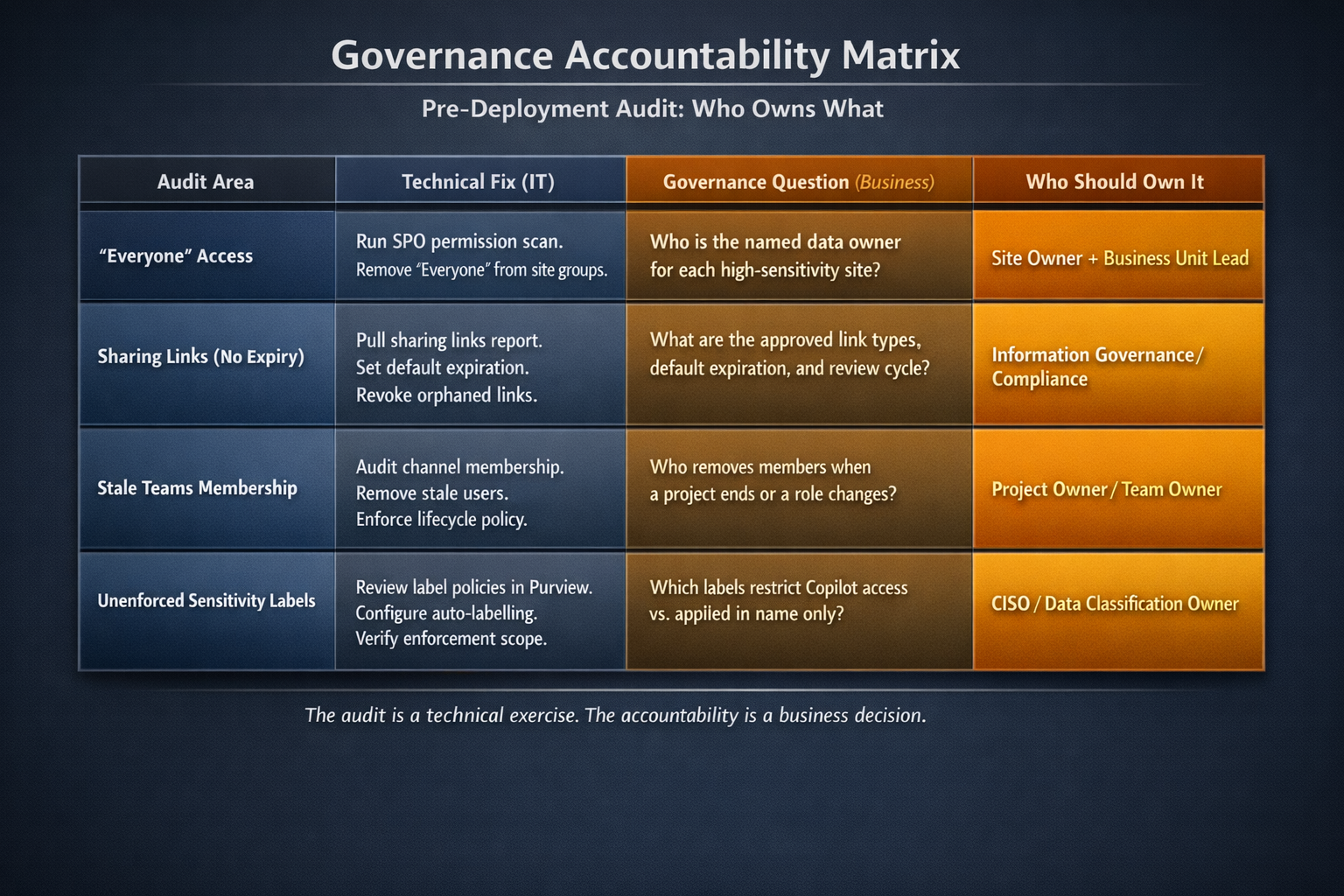
Every one of these four areas has a technical fix and a governance question underneath it. The technical fix is something IT can implement. The governance question is something IT should never be answering alone.
Before your Copilot deployment, someone in your organization should produce a single document that answers the following in writing:
- Who is the named data owner for each high-sensitivity SharePoint site?
- What are the approved sharing link types and default expiration periods?
- Who is responsible for Teams membership when a project closes?
- Which sensitivity labels restrict AI access and who accepted the risk for those that don’t?
- Who has reviewed and signed off on this audit before go-live?
That document is not an IT deliverable. It’s a business governance decision that happens to have technical implementation steps attached.
If your organization deploys Copilot without it, you’re not behind on permissions. You’re behind on accountability. And when something surfaces that shouldn’t, the question won’t be “why didn’t IT fix the permissions.” It will be “who signed off on deploying this before the governance work was done.”
That question has a different kind of answer.
One thing to do this week
Pull the sharing links report for your tenant. SharePoint Admin Center > Reports > SharePoint > Sharing links. Filter for “Anyone with the link.”
Look at the created date column.
That number and those dates are your starting point for the conversation with leadership about what Copilot is about to search.
What Vendors Won’t Tell You is published fortnightly. If someone forwarded this to you, you can subscribe at https://what-vendors-wont-tell-you.ghost.io.
If you found this useful, the most helpful thing you can do is forward it to one CISO or IT leader who’s about to deploy Copilot.